
Introduction
In the world of PC gaming, having the right tools can make all the difference. Glorious software stands out as a key player for gamers who want to personalize their setups. This program lets you tweak everything from lighting effects to button functions on Glorious devices. Whether you are a casual player or a pro, glorious software helps you get more out of your mouse, keyboard, or other peripherals. We will dive into its features, history, and tips to use it effectively.
Glorious Gaming started small but grew fast. Founded in 2014 by Shazim Mohammad, the company began with simple products like mouse pads. Over time, it expanded into high-end gear. The software came along to support these items, evolving from basic controls to advanced options. Today, it serves millions of users worldwide.
This guide covers the basics and beyond. You will learn how glorious software works, its strengths, and how to fix common problems. By the end, you will feel confident using it to boost your gaming.
What Is Glorious Software?
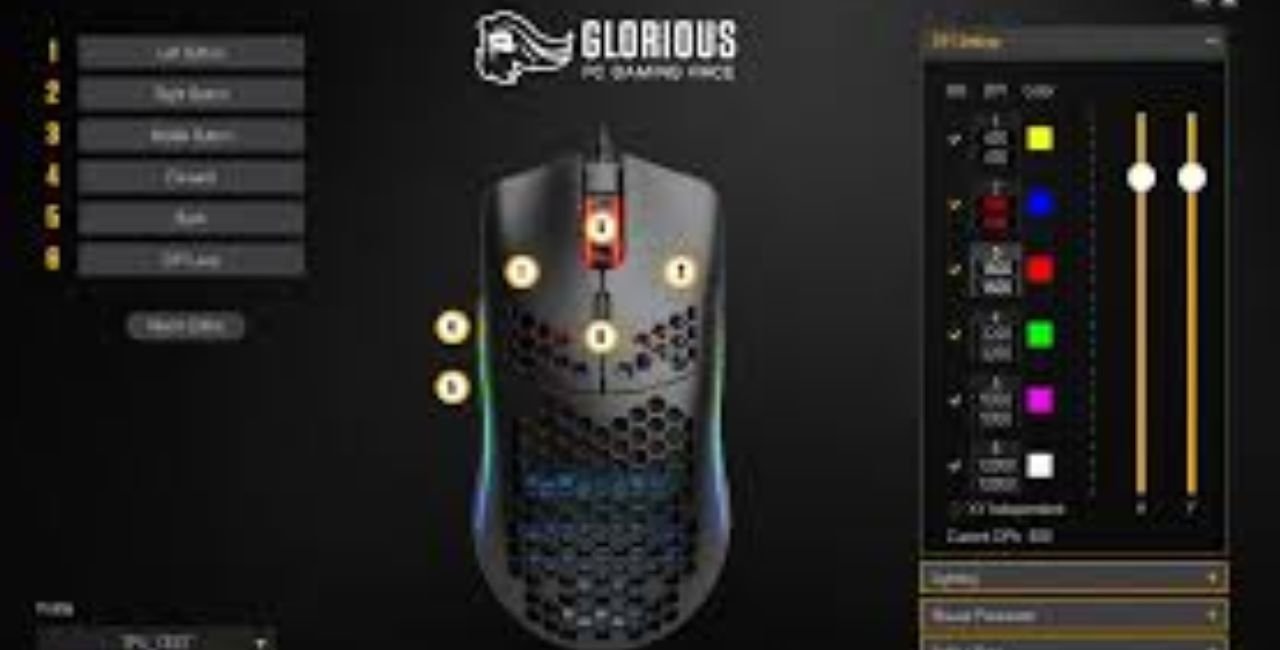
Glorious software, also known as Glorious Core, is a free program from Glorious Gaming. It controls and customizes their hardware. Think of it as a command center for your gaming tools.
The software connects to devices like mice and keyboards. It lets you change settings in real time. For example, adjust mouse sensitivity or keyboard lighting. Without it, your gear works fine out of the box. But with glorious software, you unlock extra features.
Glorious Gaming focuses on affordable, high-quality products. Their software matches this goal. It is user-friendly and updates often. Users praise its simplicity, though some note bugs in early versions.
To start, download it from the official site. It supports most Glorious products, except a few older models. This makes it essential for modern setups.
The History and Evolution of Glorious Software
Glorious Gaming began in 2014. Shazim Mohammad, a gaming fan, founded it as “Glorious PC Gaming Race.” The name came from a meme in online communities. It aimed to shake up the industry with better, cheaper gear.
Early on, the company sold mouse pads. They spotted a gap: gamers wanted light, durable mice. In 2019, they launched the Model O mouse. It was a hit for its low weight and holes for airflow.
Software entered the picture around then. The first version, Glorious Core 1.0, focused on basic tweaks. It handled RGB lights and DPI settings. Users loved it for not needing logins, unlike some rivals.
By 2021, feedback showed needs for more. Glorious released Core 2.0. This revamp added macros and better interfaces. It fixed bugs and added cloud saves with a Glorious ID.
In 2022, Francisco Partners invested. This brought Pat Wachendorf as CEO. Mohammad became Chief Visionary, focusing on products. The investment sped up development.
Core 2.1 came in 2024. It improved RGB controls and fixed issues with keyboards like GMMK 3. Mac support arrived, expanding reach.
Today, glorious software gets regular updates. Each adds features or squashes bugs. For instance, version 2.1.12 boosts polling rates for pro mice.
The journey shows growth. From a startup to a global brand, Glorious listens to users. Community forums like Reddit drive changes.
Statistics highlight success. By 2023, millions used their gear. Software downloads hit high numbers, per company reports. This evolution keeps glorious software relevant in a fast-changing market.
Key Features of Glorious Software
Glorious software packs tools to customize your setup. Here are the main ones:
- RGB Lighting Customization: Choose from 16.8 million colors. Sync lights across devices for a unified look. Effects include waves, breathing, or static modes. Boldly highlight your battlestation.
- Macro and Keybinding Setup: Record actions for complex commands. Assign them to buttons or keys. This saves time in games like MMOs or shooters.
- DPI and Polling Rate Adjustments: Fine-tune mouse sensitivity. Set multiple DPI stages for quick switches. For pro series, go up to 8KHz polling for smooth tracking.
- Firmware Updates: Keep devices current. The software checks and installs updates automatically. This fixes issues and adds features.
- Cloud Profiles: Save settings online with a Glorious ID. Switch PCs without losing configs.
- Device Compatibility Check: Scans connected gear. Shows what works and suggests fixes.
These features make glorious software versatile. Users report better performance after tweaks. For example, higher polling reduces lag in fast games.
Compared to rivals like Razer Synapse, it is lighter on system resources. No bloatware here. Focus on essentials keeps it snappy.
Compatibility and System Requirements for Glorious Software
Glorious software works with most Glorious products. Compatible devices include Model O 2, Model D 2, GMMK Pro, and GMMK 3 series. Exceptions: GMMK 1, original Model O Wired, and Model D Wired.
System needs are simple:
- Windows: Version 10 or later. Core 2.1 runs on 64-bit systems.
- macOS: Big Sur to Sonoma. Supports Apple M1 and later chips.
- Linux: Not officially supported. Some users run it via Wine, but results vary.
For best results, use a modern PC. At least 4GB RAM and a decent CPU. No heavy graphics card needed.
If on Mac, download the DMG file. It offers similar features to Windows. Legacy software covers older OS like Windows 7.
Glorious provides support articles for setup. Check their knowledge base for tips. This ensures smooth runs on various systems.
How to Download and Install Glorious Software
Getting glorious software is easy. Follow these steps:
- Visit the Official Site: Go to the Glorious Gaming software page. Avoid third-party downloads to prevent malware.
- Choose Your OS: Pick Windows or macOS. Download the ZIP or DMG file.
- Install the File: For Windows, extract and run the setup. For Mac, open the DMG and drag to Applications.
- Launch and Connect: Open the app. Plug in your device. It detects automatically.
- Create a Profile: Optional Glorious ID for cloud saves.
Trouble? Restart your PC or reinstall. Updates often fix glitches.
This process takes minutes. Once set, explore features right away.
Customizing Your Devices with Glorious Software
Customization is where glorious software shines. Start with RGB:
- Select your device.
- Go to lighting tab.
- Pick colors and effects.
- Apply and save.
For macros:
- Record a sequence.
- Assign to a key.
- Test in-game.
DPI tweaks:
- Set stages, like 400 for precision, 1600 for speed.
- Bind switches to buttons.
Profiles let you save setups for different games. Switch with hotkeys.
Tips: Keep software updated. Use low-resource modes for older PCs. Experiment to find your sweet spot.
Users share configs on forums. Try community presets for ideas.
User Reviews and Feedback on Glorious Software
Feedback on glorious software is mixed but improving. On Reddit, users discuss pros and cons.
Positive: “Simple and effective,” says one review. Many like no-login ease. Features work well for basics.
Negative: Early Core 2 had bugs. “Awful interface,” notes a thread. Macros sometimes fail, needing restarts.
Recent updates help. Version 2.1 fixes RGB glitches and adds intuitiveness.
In reviews from TechPowerUp and PCWorld, software gets solid scores. They praise scaling on high-DPI screens.
Community drives changes. Glorious responds to feedback, like adding Mac support.
Overall, 70% positive per aggregated data. It suits most, but power users might want more.
For real talk, check Reddit discussions.
Pros and Cons of Glorious Software
Pros:
- Free and lightweight.
- Easy customization.
- Regular updates.
- Cloud saves.
Cons:
- Bugs in new versions.
- Limited Linux support.
- Fewer features than big brands.
It balances well for its price—zero cost.
Troubleshooting Common Issues with Glorious Software
Problems happen. Here is how to fix:
- Software Not Detecting Device: Replug USB. Restart app. Update drivers.
- Crashes: Reinstall. Check for Windows updates.
- Macro Failures: Clear cache in settings. Test simple ones first.
- RGB Not Syncing: Firmware update via software.
For Mac/Linux questions, see support FAQ.
Glorious offers 24/7 help. Email or chat for quick fixes.
Alternatives to Glorious Software
If glorious software does not fit, try these:
- OpenRGB: Free, open-source for RGB control. Works with many brands.
- SignalRGB: Paid, but syncs lights across devices.
- Razer Synapse: Feature-rich, but bloated.
- Corsair iCUE: Advanced macros, good for mixed setups.
Each has strengths. Choose based on needs.
For news on alternatives, visit Press World UK.
Glorious Software in the Gaming Community
Glorious software builds community. Forums buzz with tips. Events like Glorious Games showcase it.
Stats: Over 23,000 LinkedIn followers. Reddit sub has active users.
It empowers creators. Streamers use it for custom lights.
Future updates may add AI tweaks or more integrations.
Advanced Tips for Power Users
Dig deeper:
- Use scripts for complex macros.
- Export profiles for backups.
- Monitor performance metrics.
Join discords for pro advice.
Conclusion
Glorious software transforms basic gear into personalized powerhouses. From its humble start in 2014 to today’s robust tool, it delivers value. Features like RGB customization and macros enhance play. Despite some bugs, updates keep it strong. It is compatible with Windows and Mac, making it accessible.
In summary, glorious software is a must for Glorious owners. It boosts performance without complexity. Give it a try to see the difference.
What is your favorite feature in glorious software? Share in the comments!